TagDuck for WordPress

SEO-ready alt text, file names and keywords for WordPress

TagDuck writes alt text, descriptions and keywords based on what you tell it about your business — plus SEO-friendly file names for new photos and product-aware descriptions for WooCommerce. You review and accept; nothing changes until you do.

Coming soon to WordPress.orgGet your API key

Submitted to WordPress.org — create your account now and connect when it's live.

Most Media Libraries are full of IMG_4521.jpg with no alt text — invisible to image search and to screen readers.

How it works

  1. 1

    Install & connect

    Install TagDuck from WordPress.org and paste the API key from your TagDuck account into the plugin Settings.

  2. 2

    Pick your images

    Choose images already in your Media Library — or add new photos with TagDuck.

  3. 3

    Review & accept

    Edit any suggestion, then accept. Nothing on your site changes before that.

Two ways to use it

Fix the images you already have, and get new ones right from the start.

Your existing library

Describe the images you already have

Filter for images without alt text, select them, and add a line of context about your business.

What it writes

  • Alt text
  • Description
  • Caption (optional)
  • Image keywords

Your files are never changed — file names and URLs stay exactly as they are.

New photos

Add images with TagDuck

Upload new photos through TagDuck and they arrive in your Media Library already described.

What it writes

  • SEO-friendly file name
  • Alt text and description
  • Image keywords
  • Location from a map pin — or the photo's own GPS

Everything is embedded into the photo before it enters your Media Library.
You stay in control

Every suggestion waits for you. Nothing on your site changes until you accept it.

Review before anything changes

Suggestions wait in Review. Edit the text and keywords, then accept — one by one or in bulk.

Undo and Restore previous

Undo right after accepting, or use Restore previous later to bring back the old text.

Your context, not generic text

Tell TagDuck who you are, what you do and what the photos show. Add must-have keywords and pick the output language.

You choose who can use it

Admins decide which roles can use TagDuck. Only the images you choose are sent — nothing before a key is connected.

WooCommercePro · Agency

Product photos get product context

TagDuck adds the product name, category and variant — like colour or size — to the context automatically, so product images get alt text that actually names the product.

Product: Cotton hoodieCategory: HoodiesVariant: Sage · S

Alt text

Sage cotton hoodie in size S on a wooden hanger

Inside the plugin

Native WordPress admin screens — nothing new to learn.

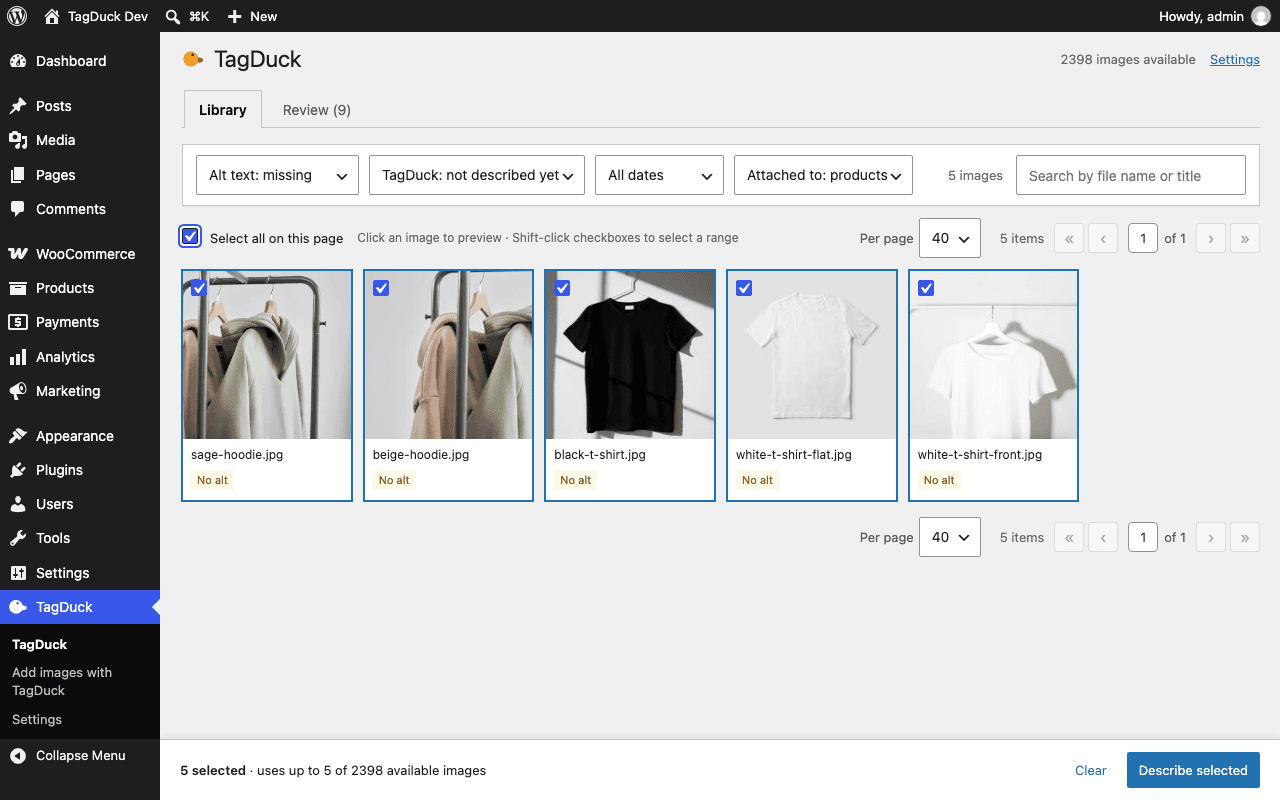
TagDuck Library in the WordPress admin: five product photos of hoodies and T-shirts, all selected and marked "No alt", with filters for missing alt text and a "Describe selected" button.
Library — Find images without alt text and select the ones to describe.
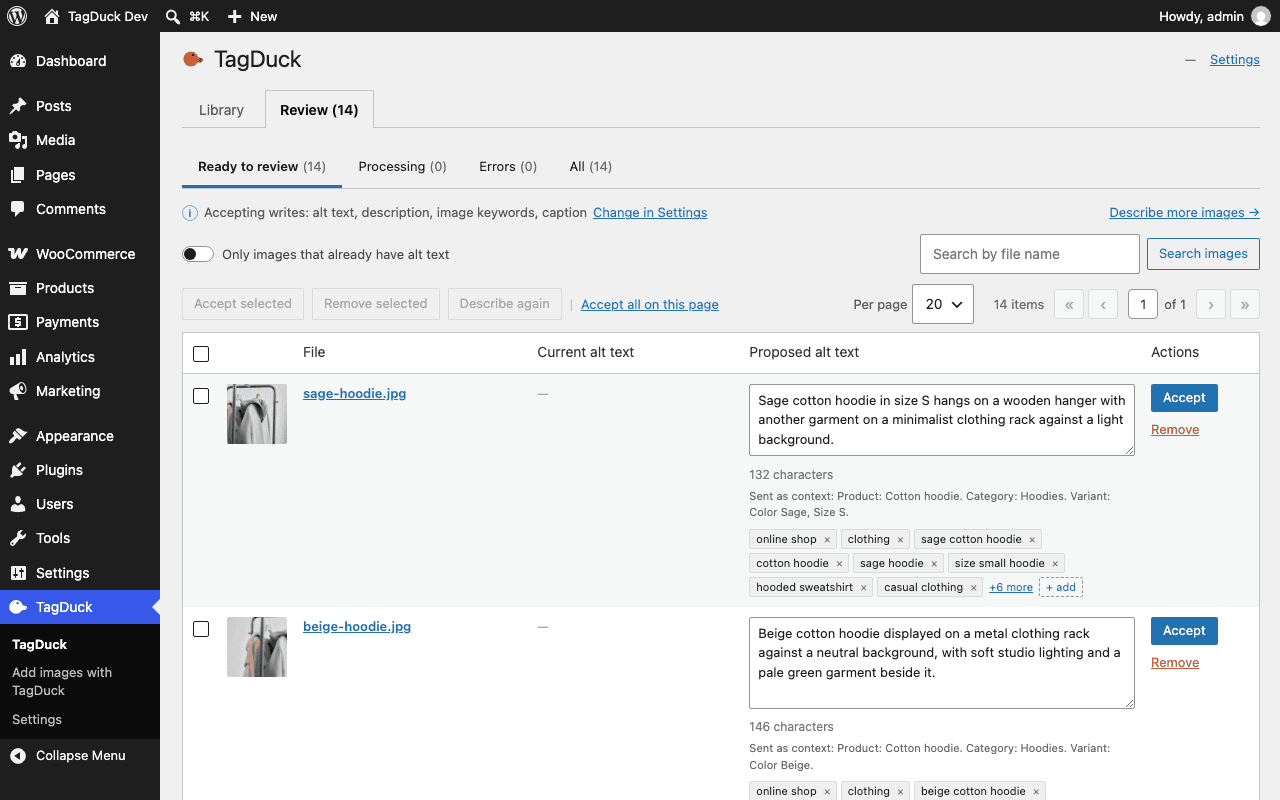
TagDuck Review tab listing proposed alt texts for hoodie photos in editable text boxes, with the product context that was sent, keyword chips and Accept and Remove buttons.
Review — Edit suggestions and keyword chips before accepting — see what was sent as context.
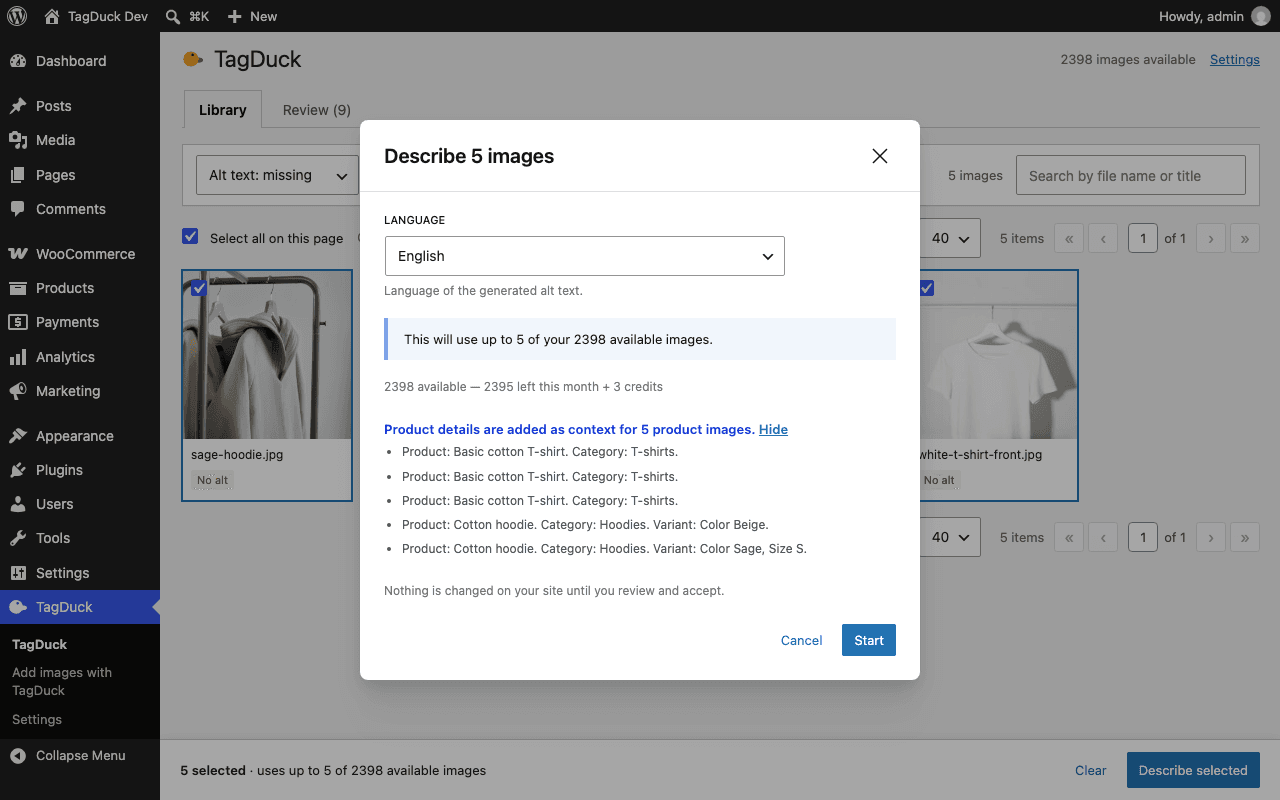
The "Describe 5 images" dialog with an output language selector, the number of images the batch will use, and a list of WooCommerce product details added as context.
Start dialog — Set context, must-have keywords and language for the batch.
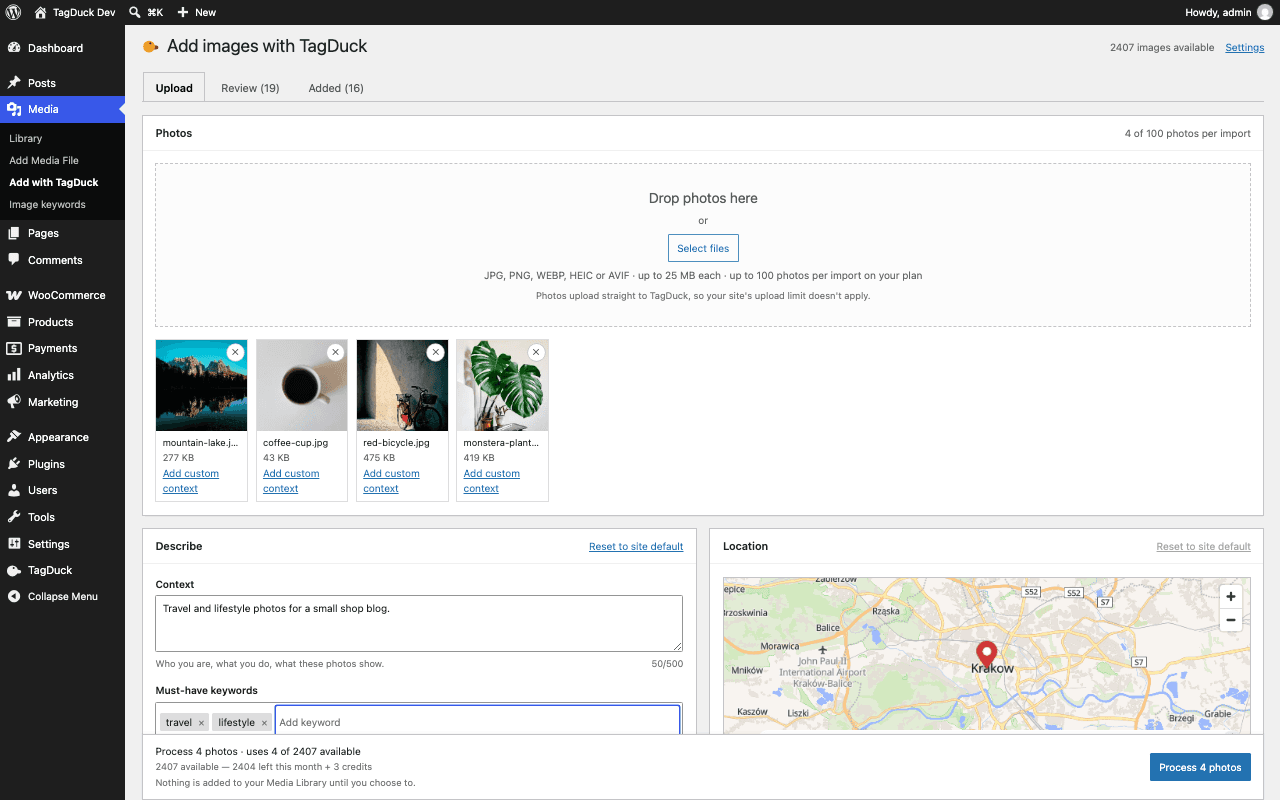
The "Add images with TagDuck" screen with four uploaded travel photos, a context field, must-have keyword chips and a map with a location pin on Kraków.
Add images with TagDuck — Upload new photos, set file names and drop a location pin.
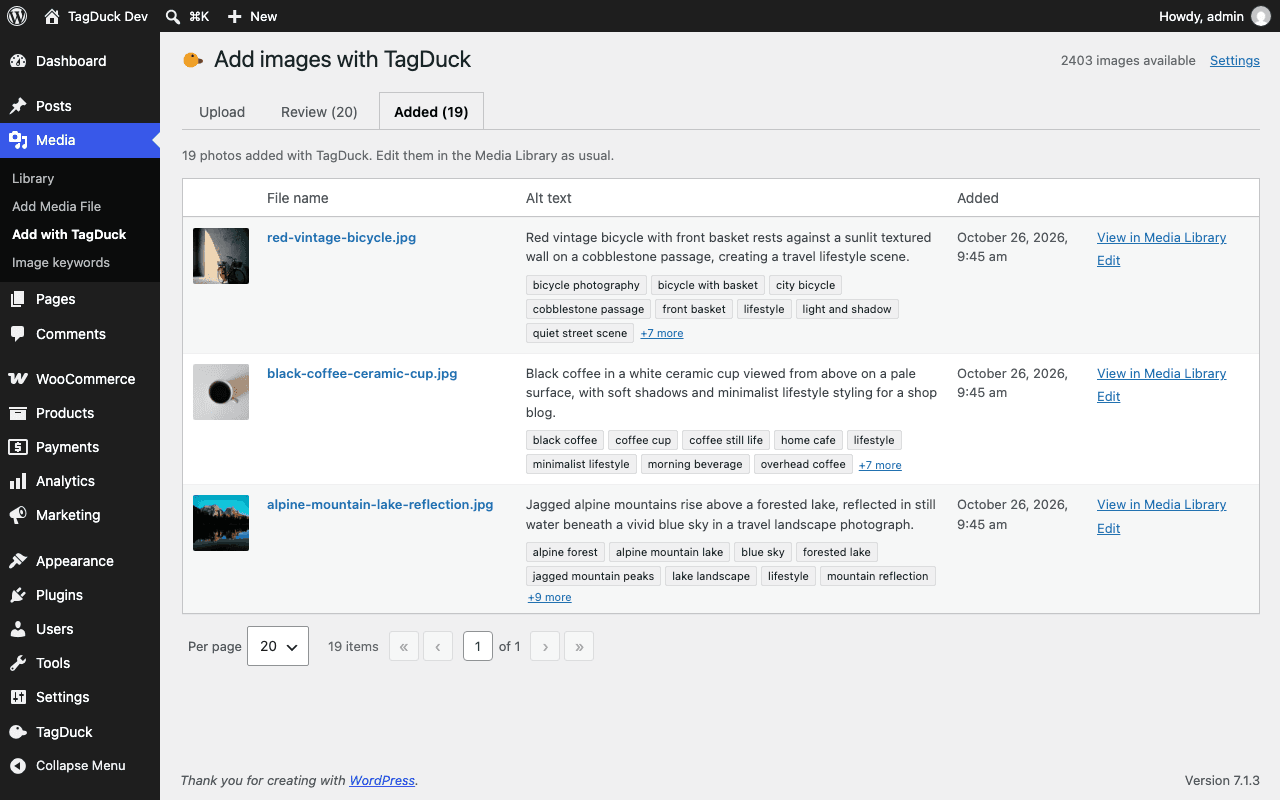
The Added tab listing photos added through TagDuck — a red vintage bicycle, a black coffee cup and an alpine lake — each with its new file name, alt text and keyword chips.
Added — Every photo added through TagDuck, with its final name and alt text.
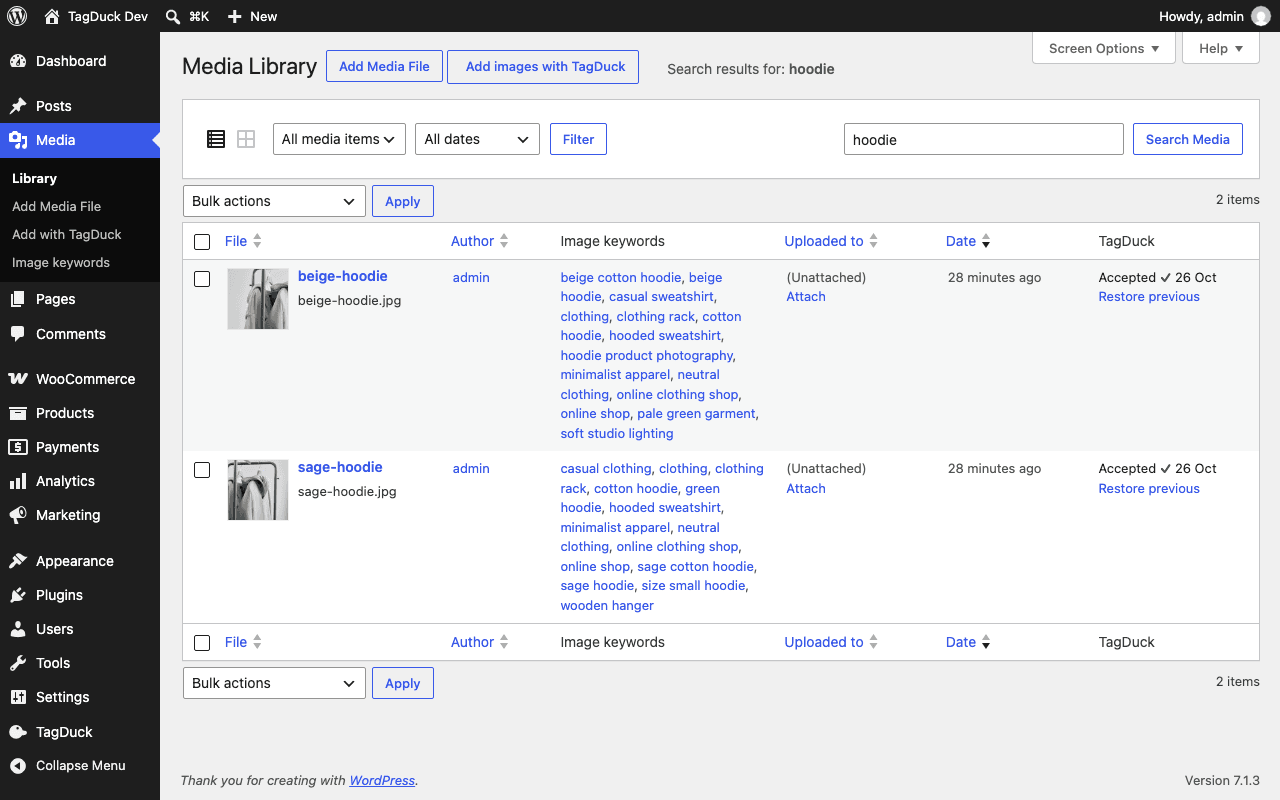
The WordPress Media Library list with an Image keywords column and a TagDuck column showing "Accepted" and a "Restore previous" link for two hoodie photos.
Media Library column — TagDuck status and Image keywords right in the Media Library list.
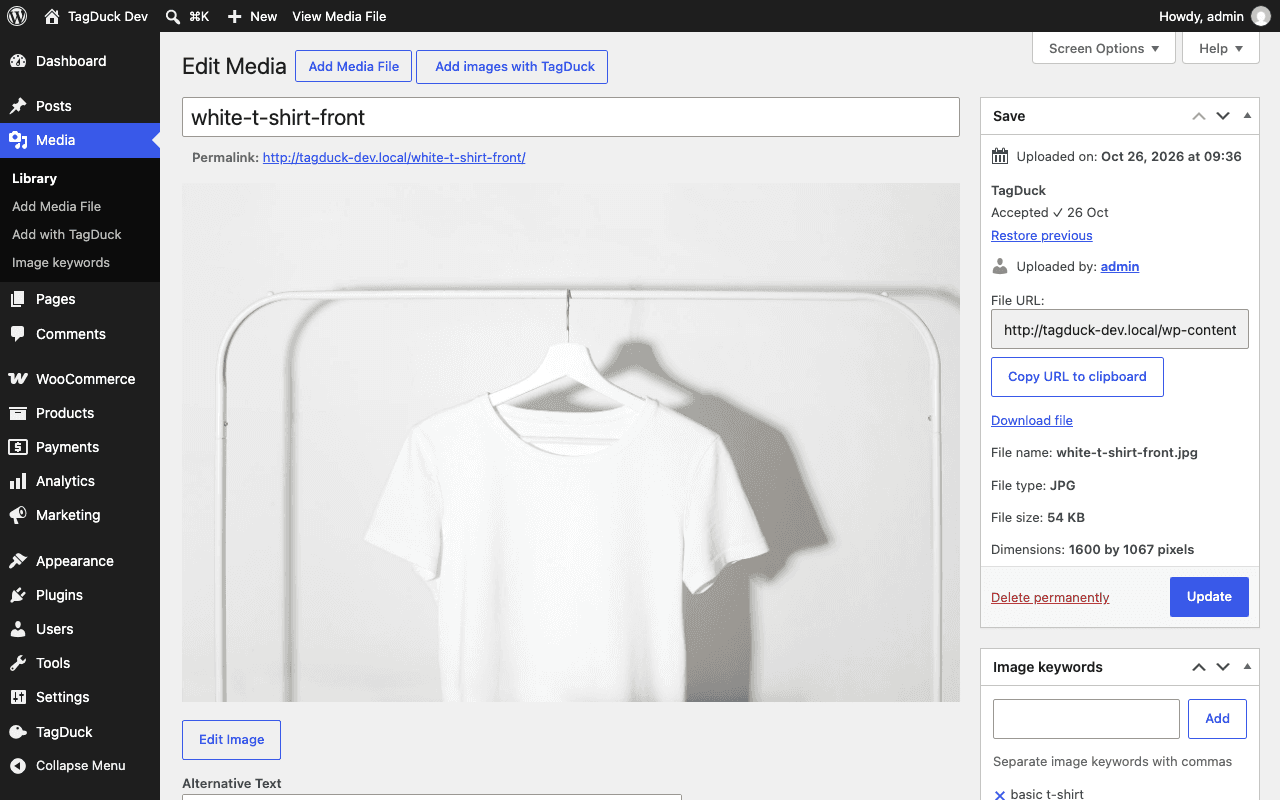
The WordPress Edit Media screen for a white T-shirt photo, with a TagDuck box in the sidebar showing "Accepted" and "Restore previous", and an Image keywords box below it.
Edit Media panel — TagDuck details on the attachment screen, with Restore previous.
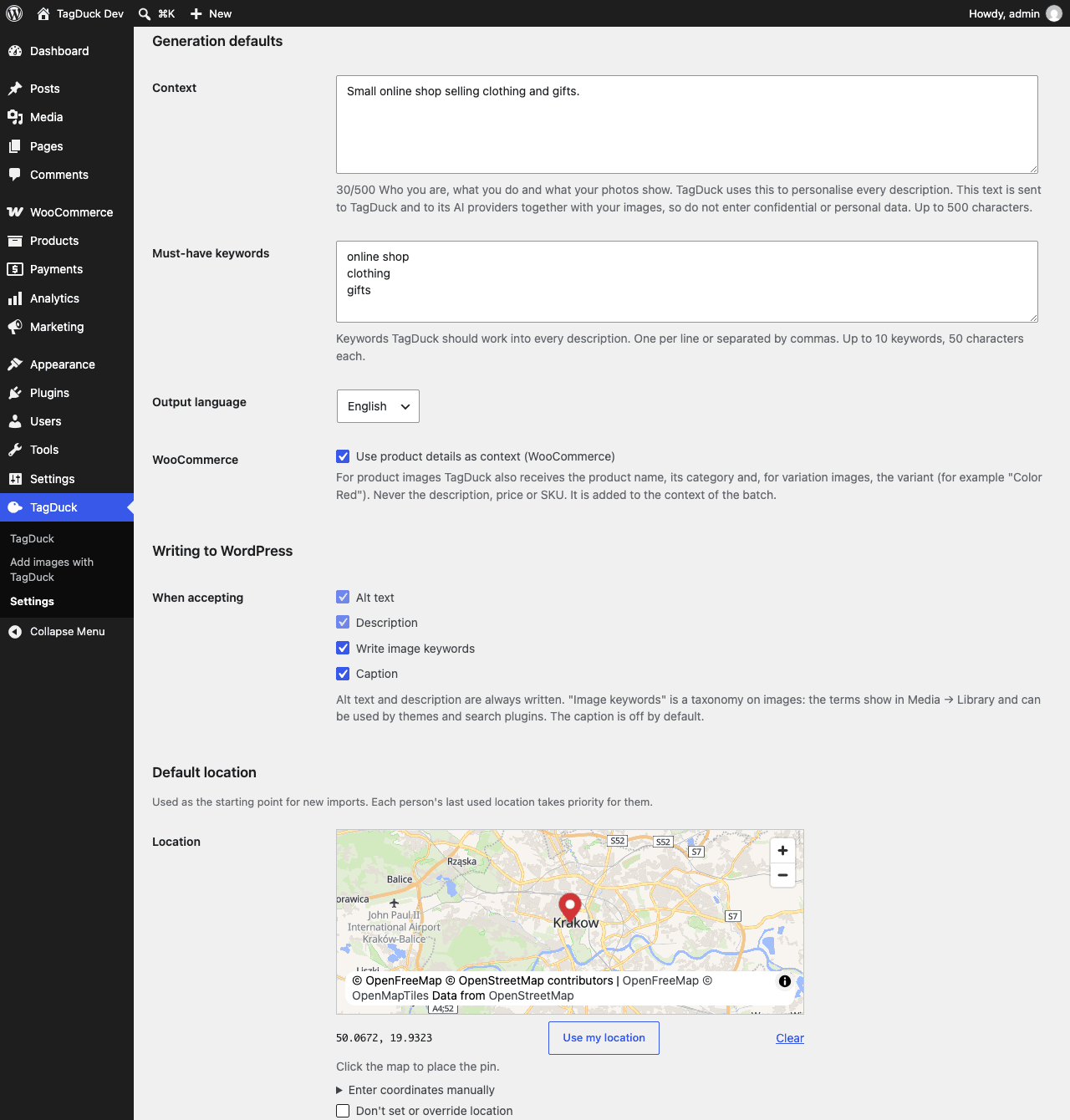
TagDuck Settings with generation defaults: context text, must-have keywords, output language, the WooCommerce product-details option, what is written when accepting, and a default map location.
Settings — Connect your API key, set defaults and choose who can use it.

Same plans as the web app

One TagDuck account, one monthly quota — shared by the web app and the plugin. Start free; move to Starter, Pro or Agency when you need more, or top up with credit packs.

  • Free
  • Starter
  • Pro
  • Agency
See pricing →

Questions

More in the main FAQ.

Does TagDuck change my image files?

No. For images already in your Media Library, TagDuck only writes text fields — alt text, description, an optional caption and image keywords. File names and URLs stay the same. Only new photos you add with TagDuck get an SEO-friendly file name, because they don't have published links yet.

What happens if I uninstall the plugin?

The alt text, descriptions, captions and image keywords you accepted stay on your site. Uninstalling removes the plugin's own data: its settings, your API key and its queue.

Which TagDuck plan do I need?

Any plan works, and you can start on Free. The plugin uses the same plans and monthly quota as the TagDuck web app — Free, Starter, Pro and Agency, plus credit packs. WooCommerce product context needs Pro or Agency.

Does it work with WooCommerce?

Yes. On Pro and Agency, product images automatically get the product name, category and variant (like colour or size) as context — so alt text reads like “Sage cotton hoodie in size S on a wooden hanger”.

What is sent to TagDuck?

Only the images you choose to describe or add, together with the context you set. Nothing is sent before you connect an API key. Full details: tagduck.io/privacy/wordpress

Which languages can it write in?

You choose the output language in the plugin Settings and can change it for each batch, so alt text matches the language of your site.

Can I edit suggestions before they're saved?

Yes. Every suggestion opens in Review, where you can edit the text and keywords before accepting. Undo and Restore previous bring back the old text if you change your mind.

Give your Media Library the alt text it’s missing

Coming soon to WordPress.orgGet your API key

Requires WordPress 6.6+ and PHP 8.1+

WordPress is a trademark of the WordPress Foundation. WooCommerce is a trademark of Automattic Inc. TagDuck is not affiliated with or endorsed by them.

TagDuck for WordPress — alt text, file names and keywords | TagDuck